/Avatar-MainMark-FullColor-400px.png)


Features / Compliance Dashboard
Know Exactly Which Drivers Are & Aren't Cleared for Dispatch
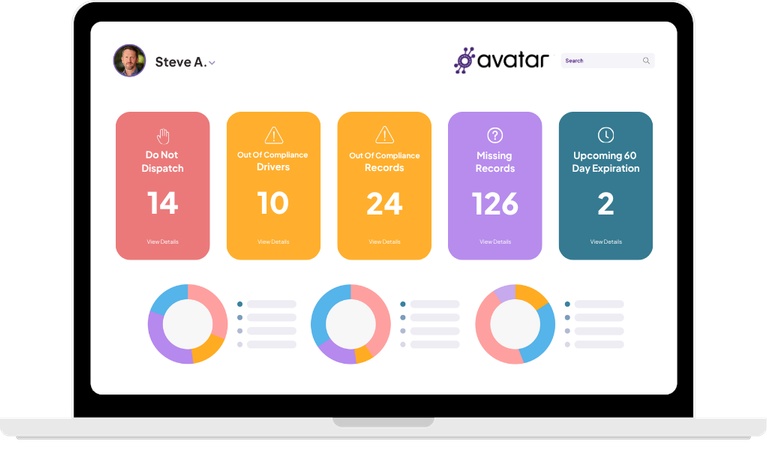
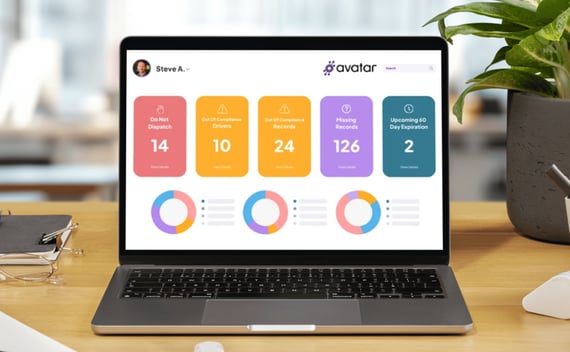
The DriverHub Compliance Dashboard gives you a real-time view of your entire fleet's compliance status in five cards.
Built for safety directors, compliance managers, and dispatchers at for-hire carriers, bus and motorcoach companies, and private fleets.
Stop Discovering Compliance Problems After They've Already Cost You

The Old Way
 |
|
|
| No single view of fleet-wide compliance — check each driver profile individually to know who's out | Expired records discovered after the fact — during an audit, an accident investigation, or a lawsuit | Do Not Dispatch status lives in someone's head, not visibly on the driver's profile for every dispatcher to see |
The New Way: 100% Compliance
 |
|
|
| Five compliance reports on one dashboard, updated in real time, instantly visible | Expired records flagged automatically before they become dispatch events or audit findings | Do Not Dispatch drivers get a red banner on their profile and every dispatcher sees it |
 Do Not Dispatch
 Out of Compliance Drivers & Records
 Missing Records
 Upcoming Expirations
Do Not Dispatch
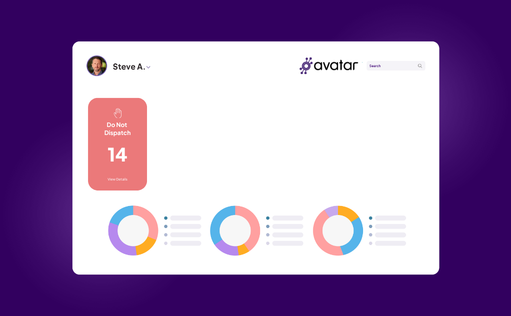
- Shows every driver currently disqualified from operating a commercial motor vehicle
- Default disqualifiers are out-of-compliance CDLs, medical cards, and MVRs
- A prominent red banner on the driver's profile ensures every dispatcher sees it before assigning a route
Out of Compliance Drivers & Records
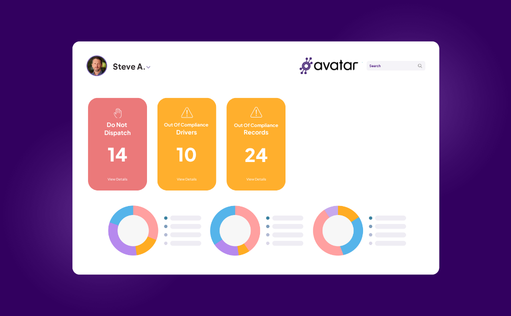
- Drivers view shows one row per driver — work through your fleet person by person
- Records view shows one row per expired record — clear a document type across your whole fleet at once
- Two views, both essential — use Drivers to focus on a person, Records to focus on a document type
- GO Riteway used DriverHub to spot out-of-date DQ files across its Michigan and Indiana locations and fixed them before a DOT audit with three weeks' notice.
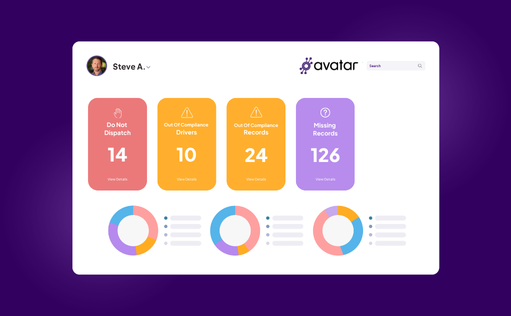
Missing Records
- Shows every required compliance document not yet added to a driver's DQ file
- A driver with three missing documents appears three times — nothing is assumed to be "probably there"
- Know before dispatch that a file is incomplete — not just expired
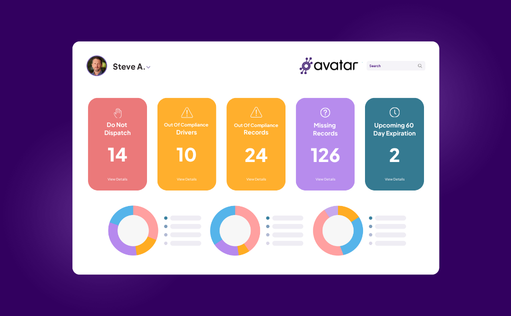
Upcoming Expirations
- Defaults to records expiring within 60 days — configurable per record type
- Set annual reviews at 30 days, medical cards at 90, CDLs at 60 — whatever gives your team enough runway
- Once a record expires, it moves automatically into Out of Compliance Records — no manual updates, no stale data

Log in to your dashboard
The Compliance Dashboard is the first thing you see when you open DriverHub — five live cards reflecting your fleet's current compliance status.

Check the DND card first
Do Not Dispatch is your most critical number. The goal is always zero. If it isn't, click in to see who's disqualified and why.

Work out-of-compliance drivers
Click into Out of Compliance Drivers to work person by person, or Out of Compliance Records to clear a document type across all drivers at once.

Clear missing records
Missing Records shows every required document not yet submitted. Resolving this list means every driver's file is complete — not just current.

Work Upcoming Expirations proactively
Catch renewals before they lapse. The goal is to keep every record out of Out of Compliance Records entirely — by acting while it's still in Upcoming Expirations.

Walk away in under 10 minutes
Your morning compliance review is done. Your fleet status is current, your dispatchers have visibility, and you're managing compliance proactively — not reactively.
Why Your Team Has Nothing to Lose
The Compliance Dashboard is included with your DriverHub subscription and takes minutes to configure.
Included at no extra cost
The Compliance Dashboard is a core part of DriverHub, no add-on fee, no setup charge, no extra seat required.
Visible to your whole team
Every dispatcher sees the red DND banner on a disqualified driver's profile. MTRWestern prints or emails its dashboard snapshot to every station. Its safety manager calls it "a big-time lifesaver."

Configurable in minutes
Choose which cards and record types you track. Set expiration windows per record. The dashboard reflects your compliance rules.
Always current, no manual updates
Records move between cards automatically as their status changes. Expired records roll from Upcoming Expirations into Out of Compliance Records on their own.
How the DriverHub Compliance Dashboard Works
| Capability |  |
Details |
| Real-time fleet compliance view | ✅ Yes | Five compliance reports on one dashboard, updated in real time |
| Do Not Dispatch alerts | ✅ Yes | A red banner appears on every disqualified driver's profile, so dispatchers see it before assigning a route |
| Configurable Do Not Dispatch rules | ✅ Yes | Out-of-compliance CDLs, med cards, and MVRs trigger Do Not Dispatch by default; you choose which record types count |
| Out-of-compliance views by driver and by record | ✅ Yes | Work your fleet driver by driver, or clear one document type across every driver at once |
| Missing records tracking | ✅ Yes | Flags every required document not yet added to a driver's DQ file |
| Custom expiration windows | ✅ Yes | Set a warning window for each record type, such as 30 days for annual reviews, 60 for CDLs, and 90 for med cards |
| Automatic status updates | ✅ Yes | Records move from Upcoming Expirations to Out of Compliance on their own when they expire |
| Shareable compliance snapshot | ✅ Yes | Print or email a snapshot of fleet compliance to every station |
| Setup help | ✅ Yes | Your Client Success Manager configures the dashboard with you during onboarding |
| Extra cost | ❌ No | Included with every DriverHub subscription: no add-on fee, setup charge, or extra seat |
| Manual updates required | ❌ No | The dashboard updates itself as records change status |
Book a Personalized DriverHub Demo
Schedule your DriverHub demo to see how Avatar customers reached 100% compliance and cut cost per hire by more than 50%.
.webp?width=580&height=387&name=Avatar%20DriverHub%20Demo%20Driver%20Recruiting%20Software%20DOT%20Compliance%20Software%20Applicant%20Tracking%20System%20(1).webp)