<img height="1" width="1" src="https://www.facebook.com/tr?id=737313050390762&amp;ev=PageView &amp;noscript=1">

Integrations   /   Samsara


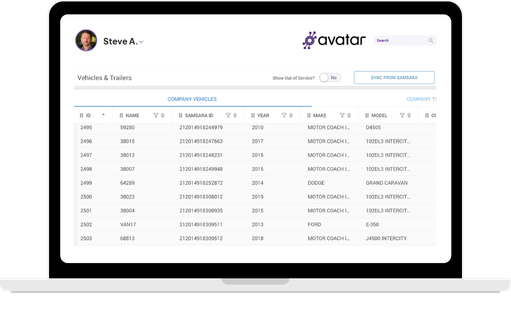
Sync Vehicles from Samsara to DriverHub’s Incident Management Tool

Eliminate the need to input driver information into multiple systems. By connecting Samsara and DriverHub, your system will be ready for roster synchronization, allowing hired drivers from DriverHub to seamlessly flow into Samsara.
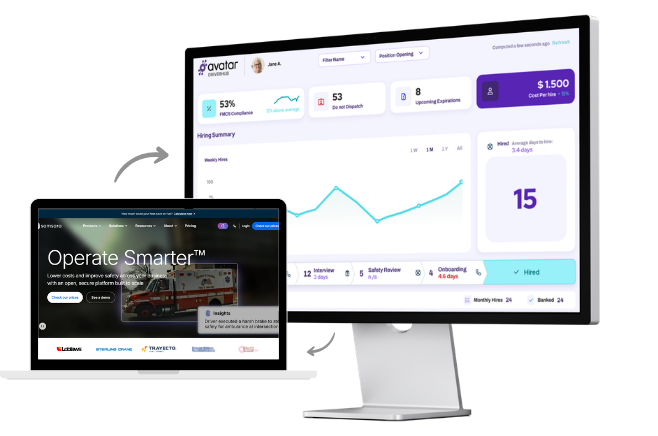
Streamline Fleet Operations by Integrating Samsara with DriverHub

5210170_bullet_check_list_icon Sync Vehicles & Trailers Instantly
3140396_community network_connection_teamwork_icon copy Unified Roster Management
2871913_activity_complete_success_icon Save 5+ Hours Daily & Boost Productivity
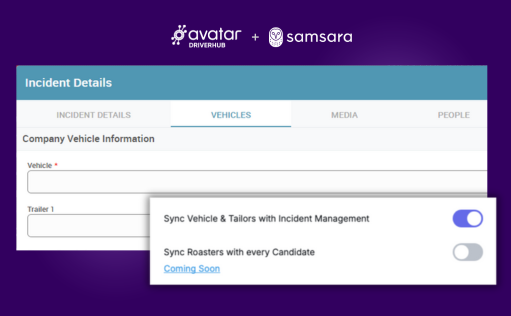
Sync Vehicles & Trailers Instantly

Connect Samsara vehicles to DriverHub's Incident Management tool and monitor in real-time.

  • Real-time synchronization
  • Automate incident tracking
Vehicle Information Integrated with Samsara

COMING SOON
Unified Roster Management

Sync your driver roster from DriverHub to Samsara automatically.

  • Automated roster updates
  • Zero manual data entry

Save 5+ Hours Daily & Boost Productivity

Eliminate the need to manually input driver information across systems.

  • Save 5+ hours per day
  • Improve team productivity

How to Create an API Token in Samsara

1 icon

Select the Settings icon at the bottom of your Samsara dashboard to view dashboard settings.

2 icon

Select API token and click + to add an API token.

3 icon

Define the token properties including a descriptive name, level of access, and permission scope.

4 icon

After you create the token, copy it and paste it into the form above. (The token will become unreadable after the page is refreshed)

Frequently Asked Questions

What does the Samsara and DriverHub integration do?

The Samsara and DriverHub integration syncs vehicles and trailers directly from Samsara into DriverHub’s Incident Management Tool. This ensures that all incidents are tied to accurate, up-to-date asset data without manual entry.

Which data is synced from Samsara to DriverHub?

The integration syncs vehicle and trailer data including:

  • VIN

  • Make and model

  • Asset ID

  • Vehicle or trailer designation

This information is automatically available when creating an incident in DriverHub.

How does this integration improve data accuracy?

By pulling asset data directly from Samsara, DriverHub eliminates manual entry errors such as incorrect VINs, asset IDs, or vehicle details. This ensures every incident report is associated with the correct asset, preserving clean, reliable data for long-term safety analytics and reporting.

How does this help during an incident or First Notice of Loss (FNOL)?

Time is critical during FNOL. With the integration:

  • Assets are already available in a dropdown menu

  • Safety teams can quickly select the correct vehicle or trailer

  • No time is wasted searching for license plates, VINs, or asset specs

This speeds up incident reporting and reduces administrative burden during high-stress situations.

Will newly added vehicles in Samsara appear in DriverHub automatically?

Yes. As soon as new vehicles or trailers are added in the Samsara dashboard, they are synced and become available in DriverHub for incident tracking. This prevents “ghost assets” and ensures real-time visibility across systems.

Does this integration eliminate duplicate data entry?

Yes. The integration removes the need to enter vehicle and trailer information into multiple systems. Asset data is maintained in Samsara and automatically reflected in DriverHub.

How does this integration support better safety analytics?

Accurate asset data ensures incidents are consistently tied to the correct vehicle or trailer. This prevents skewed reporting caused by incorrect or inconsistent data and allows safety teams to identify trends, high-risk assets, and improvement opportunities with confidence.

Is this integration real-time?

Vehicle and trailer updates are synced in near real-time, ensuring DriverHub always reflects the most current asset data from Samsara.

How do I create an API token in Samsara?

To create an API token in Samsara:

  1. Select the Settings icon at the bottom of your Samsara dashboard.

  2. Choose API Tokens and click + to add a new token.

  3. Define the token properties, including a descriptive name, level of access, and permission scope.

  4. Copy the token and paste it into the DriverHub integration form.

    Note: The token will become unreadable after the page is refreshed, so be sure to save it immediately.

Who should use the Samsara + DriverHub integration?

This integration is ideal for:

  • Safety managers

  • Fleet managers

  • Operations teams

  • Compliance teams

Any organization that wants faster incident reporting, cleaner data, and seamless fleet visibility will benefit.

Integrate Samsara with DriverHub in 2 Minutes

Eliminate the need to input driver information in multiple systems.